A tour of the console
Where everything is in the console — the header menus, the station list, the control panels and the toolbox.
Updated 12 Nov 2026
The console is the web page you operate from, at /console. It runs in your browser, with nothing to install. This article walks around the screen once so you know where to look; the other articles in this section go into each part.
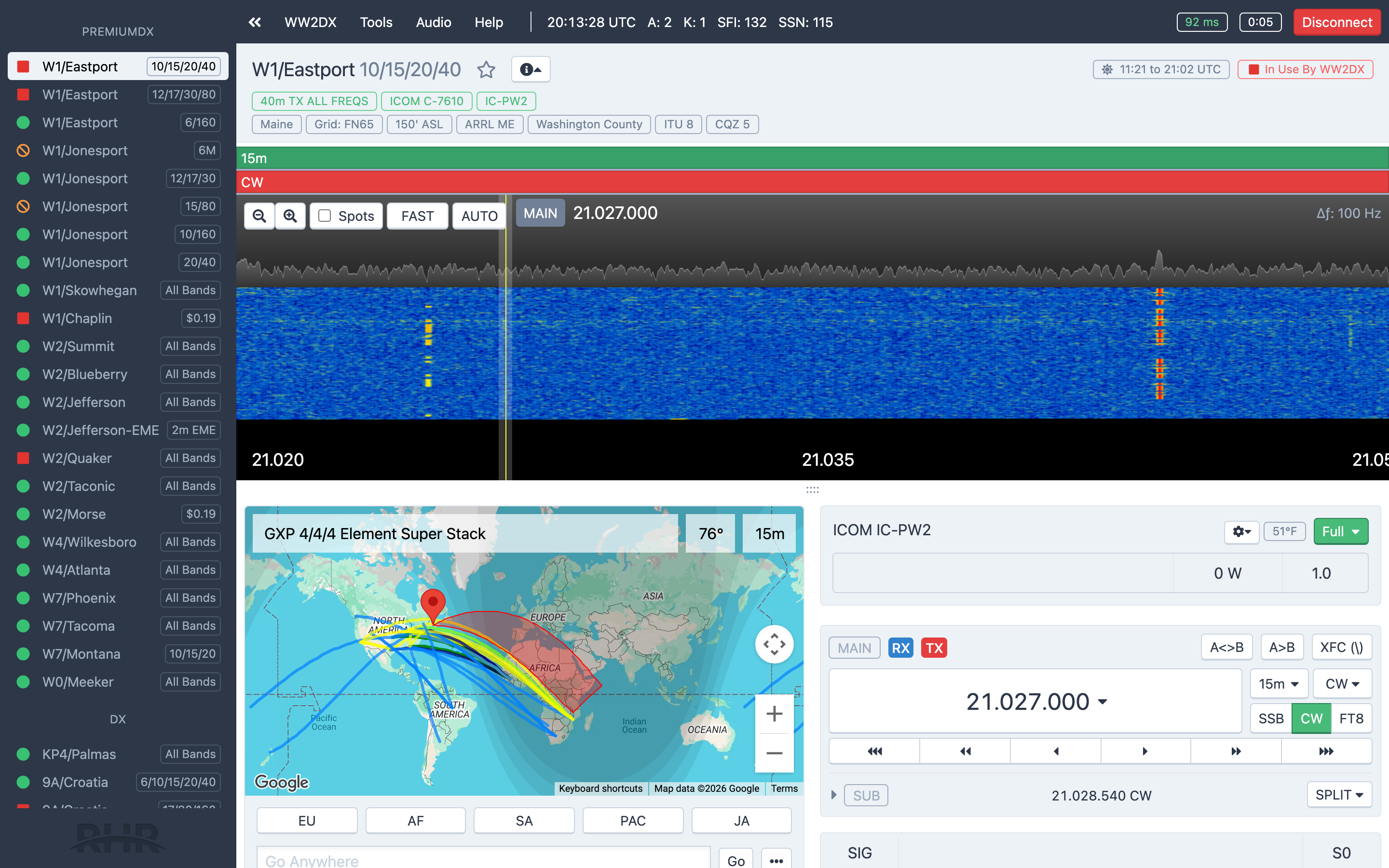
The header
The dark bar across the top is the main menu.
- Show Station List / Hide Station List — the double-arrow button at the far left collapses the station list to give the panels more room. When the list is hidden, a Stations menu appears in its place so you can still pick a station.
- Your callsign — the account menu: My Account, My Logbook, usage pages for any station you own, your Other Consoles if you belong to more than one, and Sign Out.
- Tools — Console Settings, Operating Profiles, Integrations, and links to the FT8 Skimmer and its Telnet feed. See Console settings and the FT8 skimmer.
- Audio — the Audio Setup Wizard, Master Volume, your Microphone and Speaker. See Audio setup.
- Help — Help Center, Tutorial Videos, Report a Station Problem and Contact Support.
- UTC clock and solar indices — on wide screens, the current UTC time followed by A, K, SFI and SSN from the latest WWV bulletin.
- Connected station — at the right, the name of the station you are connected to (if you are looking at a different one) and its Connect / Disconnect control, so you can always get back or hang up.
On narrow screens the menu buttons shrink to icons.
The station list
The left sidebar lists every station your membership includes. Stations you have starred appear first under Favorites; the rest are grouped by region. Each name carries a small status icon that matches the badge described in Connect to a station: available, in use, standby or unavailable. Click a station to look at it — looking is free, and you can see its description, status and current rates before you connect.
The station header
Above the panels sits the station's name, a star to add it to your favorites, and an info button that reveals the station's details, including its sunrise and sunset in UTC. On the right are the station's status badge and, once you connect, the connection timer and Disconnect button.
The panels
The middle of the screen is the station itself. What you see depends on the hardware at that station, but the panels are:
- The panadapter and waterfall across the top, on stations whose radio provides one. Drag the handle below it to change its height. See The panadapter and waterfall.
- Map — the antenna panel: a map with the grayline, the station's beam heading, antenna switching, rotor presets and Go Anywhere. See Antennas and rotors.
- VFOs — the radio panel: VFO A and B, the receive settings and the transmit controls. See Icom radios.
- Transmit — PTT, VOX, power, the CW keyer and voice macros. See Transmitting.
- Amplifier — the amplifier's level, readings and faults, on stations that have one. See Amplifiers.
- Log Entry — the logging form. See Logging from the console.
The FT8 panel appears between the waterfall and the panels when you connect with a digital preset; see FT8 in the console.
The toolbox
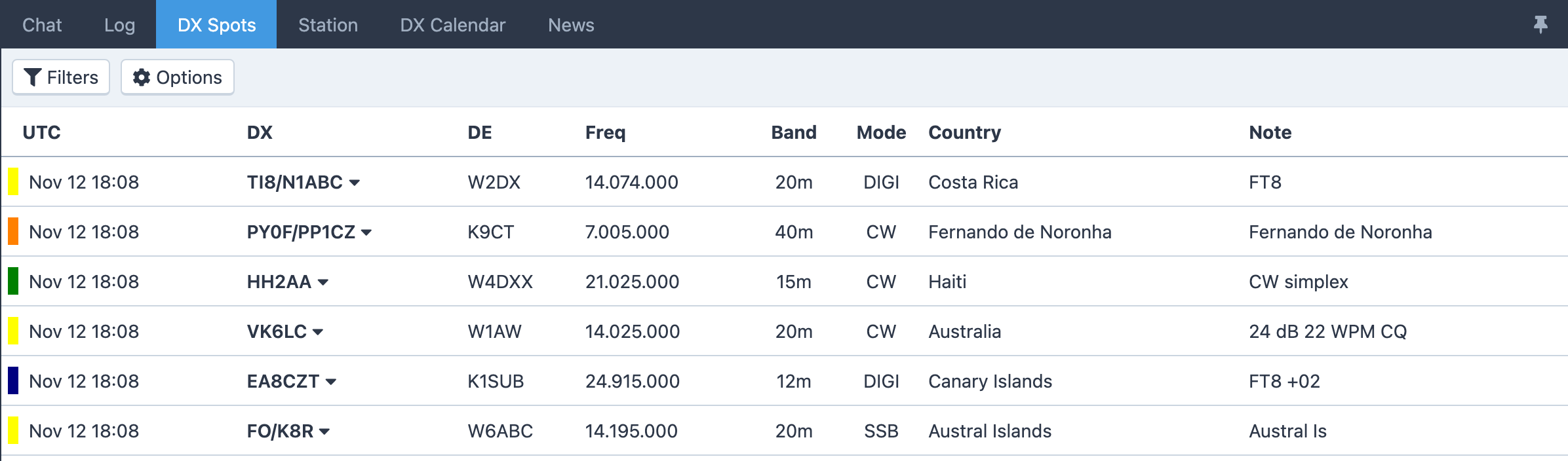
The toolbox is the tabbed panel at the bottom of the screen.
| Tab | What it holds |
|---|---|
| Chat | Talk with the other operators who are online. Shows a count of unread messages. |
| Log | Your most recent contacts, with quick editing. |
| DX Spots | DX cluster and RBN spots, with filters, and one-click tune and turn. |
| Station | The selected station's description. |
| DX Calendar | Announced DX operations, with the ones being spotted right now marked. |
| News | Bulletins from RHR. Shows a count of unread bulletins. |
| Satellites | Upcoming passes, on stations with satellite capability. |
Station administrators see extra tabs for their stations.
The buttons at the right of the tab bar control the toolbox itself: drag the grip to resize it (double-click to maximize), collapse or expand it, and pin or un-pin it from the bottom of the window. See Chat, news and the DX calendar and DX spots.
On a phone
On a small screen the panels become tabs along the bottom — Antenna, Radio, the current toolbox tab and More… — with a large touch PTT button above them. See Using a phone or tablet.
Related articles
-
Getting started
Your first QSO
A guided first session, from signing in to disconnecting, with a contact in the log.
-
Operating the console
Connect to a station
Read a station's status, choose a rate, connect with or without a microphone, and disconnect when you're done.
-
Operating the console
Console settings
Every option in Tools → Console Settings — PTT key, idle disconnect, themes, VFO style, spots display, macros and network relay.
-
Operating the console
Using a phone or tablet
The console on a small screen — the tab bar, the touch PTT button, touch tuning and what to expect.
Still stuck?
Tell us what you were trying to do and what happened, and we'll help.