Chat, news and the DX calendar
Talk with other operators, read RHR's bulletins, and keep the announced DX operations one tab away.
Updated 12 Nov 2026
On this page
Three of the toolbox tabs aren't about the station at all. They keep you in touch with the other operators, with RHR, and with what's on the air this month.
Chat
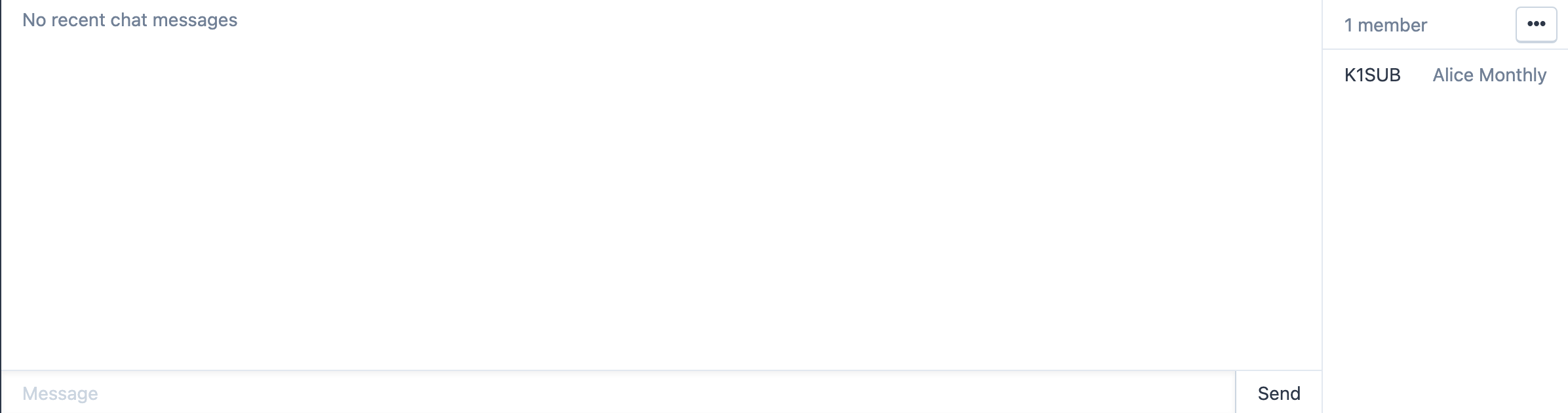
The Chat tab is a single room for everyone signed in to the console. Before you join it explains the rules: Other users will see your callsign and first name in the chat. Station operation will always remain anonymous. — so chatting never reveals which station you are on. Click Join Chat, or tick Automatically join chat to join every time you open the console.
Once in, type in the Message box and press Enter or Send. The member list on the right shows who is in the room by callsign and first name; on a narrow screen it is replaced by a count. The tab's title shows the number of unread messages, and a sound plays for new messages if you want it.
The … menu in the chat has Auto-Join, Sounds and Leave Chat. The same two switches are under Tools → Console Settings → General → Chat as Auto-Join Chat and Play Chat Sounds.
The name other operators see is your callsign. You can set a different display name under Account → Settings → Preferences → Chat Name; see Profile and preferences.
News
The News tab lists RHR's bulletins — station changes, new features, outages and events — newest first, with the date of each. The tab title shows how many you haven't read. Click the button under a new bulletin to mark it read; it says Roger That!, Five By Nine!, Roger Roger! or Affirmative!, depending on the bulletin. Important bulletins may also pop up as a notice when you open the console; click Okay to dismiss them.
DX Calendar
The DX Calendar tab lists announced DX operations from NG3K's Announced DX Operations page (there is a link to the source at the right). Operations that are on the air today come first under On the air now, then the rest by month.
- Search filters by callsign, entity or anything in the notes.
- Spotted only keeps only the operations that appear in your current DX spots — the ones you could work right now.
- The Spots column shows the recent spots for each operation; click one to tune to it.
- Click a callsign for Look Up on Map, which drops its location on the antenna map, View on QRZ.com, View on DXHeat, and Visit Website when the operation has one.
- Dates, When (how long it has left, or when it starts), QSL and Info are from the announcement.
Related articles
-
Operating the console
A tour of the console
Where everything is in the console — the header menus, the station list, the control panels and the toolbox.
-
Operating the console
DX spots
The DX cluster and RBN in the console — filter spots, see what you still need, and tune and turn the beam in one click.
-
Operating the console
Console settings
Every option in Tools → Console Settings — PTT key, idle disconnect, themes, VFO style, spots display, macros and network relay.
Still stuck?
Tell us what you were trying to do and what happened, and we'll help.