Keyboard shortcuts
Every keyboard shortcut in the console, from connecting and PTT to macros, logging and tuning.
Updated 12 Nov 2026
On this page
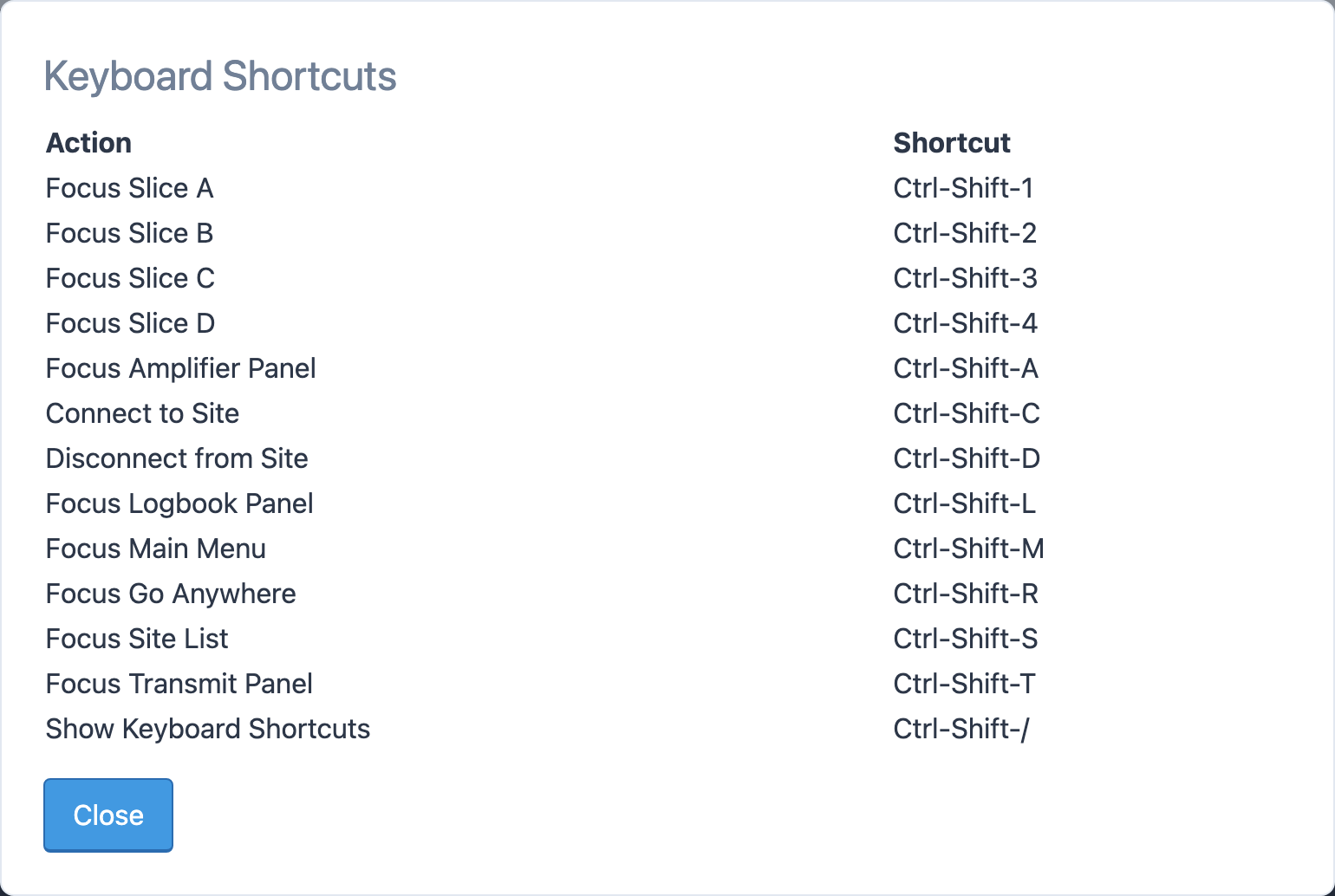
Press Ctrl-Shift-/ anywhere in the console to see the Keyboard Shortcuts list. This page is the same list with the keys that live elsewhere in the console added.
Moving around
| Keys | Action |
|---|---|
Ctrl-Shift-A | Focus the Amplifier panel |
Ctrl-Shift-C | Connect to the station |
Ctrl-Shift-D | Disconnect from the station |
Ctrl-Shift-L | Focus the Logbook (Log Entry) panel |
Ctrl-Shift-M | Focus the main menu |
Ctrl-Shift-R | Focus Go Anywhere |
Ctrl-Shift-S | Focus the station list |
Ctrl-Shift-T | Focus the Transmit panel |
Ctrl-Shift-/ | Show the keyboard shortcuts |
These use the Ctrl key on every platform, including Macs. On a phone layout, a shortcut first switches to the tab that holds its panel.
Transmitting
| Keys | Action |
|---|---|
| Hold the PTT key | Transmit. Ctrl by default; choose Shift, Ctrl + Shift, Alt/Option + Shift or Alt/Option + Spacebar under Tools → Console Settings → General → PTT Key. |
F1 … F5 | Send a CW macro (in CW) or play a voice macro (on phone) |
Shift-F1 … Shift-F5 | Send or play the macro, repeating at the Repeat interval |
Esc | Stop CW, stop a voice macro, abort an FT8 transmission, or close the settings window |
Hold \ | XFC on Icom stations: listen on and tune the transmit VFO (not while typing in a text box) |
Tuning
| Keys | Action |
|---|---|
Enter in Tune VFO | Go to the typed frequency |
Space or Enter on a tuning button | Step once (Buttons VFO style) |
Logging
In the Log Entry panel:
| Keys | Action |
|---|---|
Enter | Save the contact. In run mode and contest fieldsets, send the next message instead (ESM). |
Shift-Enter | The alternate run-mode message |
Tab | Next field |
Space in Callsign | Jump to the next field |
Alt-← / Alt-→ | Tune down or up 10 Hz; with Shift, 100 Hz |
Esc | Cancel a quick edit, or stop CW |
See Logging from the console and Run mode and ESM.
FT8
| Action | Effect |
|---|---|
| Click a decode | Set the receive frequency to it and pick up the call |
| Double-click a decode | Reply and arm the transmitter |
Esc | Abort the transmission |
See Making FT8 contacts.
Related articles
-
Operating the console
Transmitting
Push to talk from the keyboard, mouse or touch screen, use VOX, set power and the monitor, read the meters and understand transmit lockouts.
-
Operating the console
CW
Send CW from the keyboard as you type, with F1–F5 macros, speed and sidetone controls, and a one-click RBN check.
-
Contesting
Run mode and ESM
Run a CW pileup from the keyboard: Enter sends the right message for where you are in the QSO.
-
Operating the console
Console settings
Every option in Tools → Console Settings — PTT key, idle disconnect, themes, VFO style, spots display, macros and network relay.
Still stuck?
Tell us what you were trying to do and what happened, and we'll help.