DX spots
The DX cluster and RBN in the console — filter spots, see what you still need, and tune and turn the beam in one click.
Updated 12 Nov 2026
The DX Spots tab in the toolbox is a live DX cluster feed with Reverse Beacon Network (RBN) skimmer spots mixed in. The same spots can be drawn on the waterfall and on the antenna map, so you can see activity where you are tuning and where the beam points.
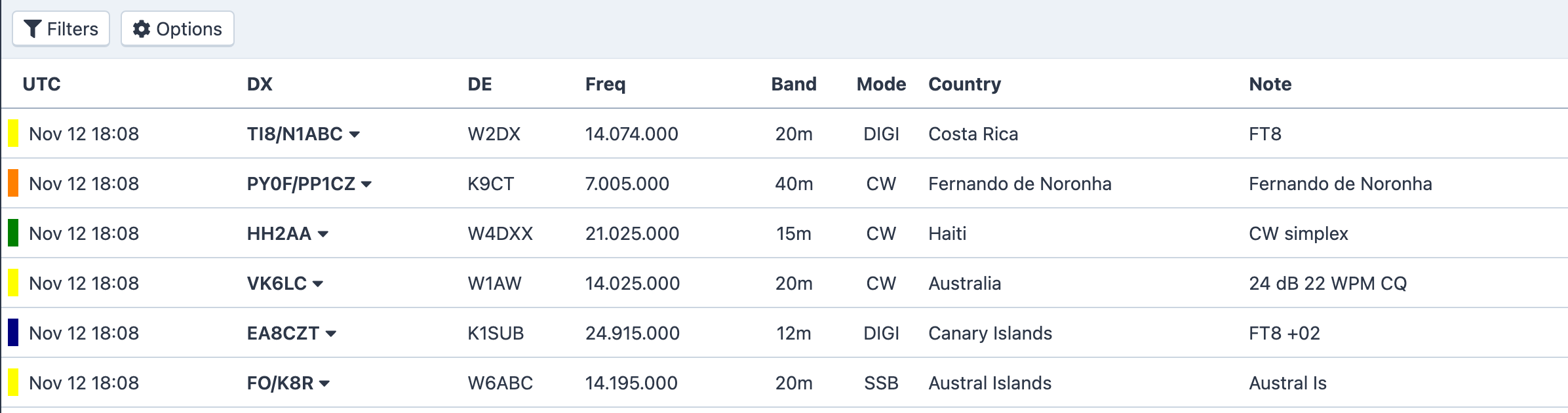
The table
Newest spots are at the top, and a fresh spot is highlighted for a moment as it arrives. Each row has:
| Column | Meaning |
|---|---|
| UTC | When it was spotted. The colored bar beside the time is the band's color, matching the band markers on the panadapter. |
| MULT! | Shown in red when the spot is a new multiplier in your current contest. See Contest logging. |
| DX | The spotted station. Click it for the menu below. |
| DE | Who spotted it — a skimmer, for RBN spots. |
| Freq, Band, Mode | Where it is. |
| Country | The DX's entity. |
| Note | The spotter's comment. RBN spots carry an RBN tag and the skimmer's report. |
Click a DX callsign for:
- Tune and Turn — tune the radio to the spot and point the beam at it. Where the mode is ambiguous the menu offers one entry per mode, such as Tune and Turn (CW).
- Tune Only — tune without moving the rotor.
- View on QRZ.com and View on DXHeat.
The tune options need you to be connected to the station you are looking at.
What you still need
If you sync your logbook with Club Log (see Club Log sync), three more columns appear — Band, Mode and Slot — marking each spot against your log:
- C — confirmed on that band, in that mode, or in that band-and-mode slot;
- W — worked but not confirmed;
- • — not yet worked: a new one;
- ATNO — an all-time new one, an entity you have never worked.
Filters
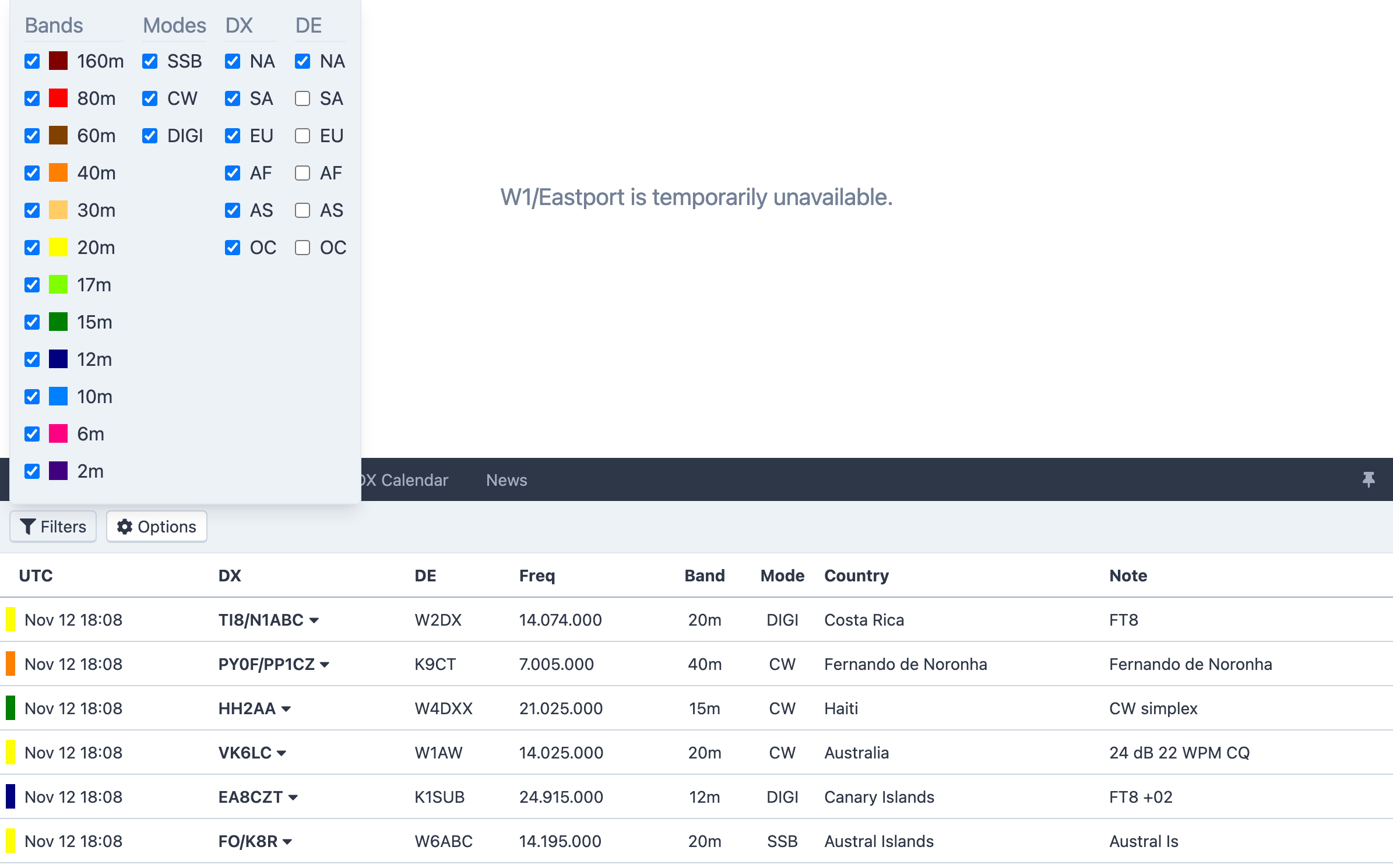
Filters opens DX Spot Filters with four groups of checkboxes: Bands (160 m through 2 m), Modes (SSB, CW, DIGI), DX and DE continents (NA, SA, EU, AF, AS, OC). Untick what you don't want to see. The filter applies to the table, the waterfall and the map alike.
Options holds:
- Show On Map — draw the spots on the antenna map, with a marker for the one you are hovering over in the table.
- Show My RBN Only — show only the RBN skimmers that have heard you. Check RBN in the CW panel turns this on for you after sending a test call; see CW. While it is on, a banner reads Showing my RBN spots only., with Reset to clear the list and Done to return to all spots.
Spots on the waterfall
Tick Spots in the panadapter's corner (or Show Spots on Waterfall under Tools → Console Settings → View) and each spot becomes a flag at its frequency. Click a flag to tune to it; right-click to hide that spot for 1, 24 or 48 hours. See The panadapter and waterfall.
Solar indices
Propagation context is in the header on wide screens: the UTC time, then A, K, SFI (solar flux) and SSN (sunspot number) from the latest WWV bulletin. Each shows – until the first bulletin arrives.
Related articles
-
Operating the console
The scope and waterfall
Read the spectrum, click to tune, zoom and pan, set the waterfall speed and show DX spots on it.
-
Operating the console
Antennas and rotors
Use the map panel to choose antennas, turn the beam with Go Anywhere or a preset, and track the moon on EME stations.
-
Logbook
Club Log sync
Link your Club Log account so every new contact is uploaded at once and your DXCC charts come back nightly.
-
Logbook
DXCC tracking
Your worked and confirmed countries, from Club Log, on the DXCC page and marked on every DX spot.
Still stuck?
Tell us what you were trying to do and what happened, and we'll help.