The scope and waterfall
Read the spectrum, click to tune, zoom and pan, set the waterfall speed and show DX spots on it.
Updated 12 Nov 2026
On this page
The console shows the radio's scope — the live spectrum — with a scrolling waterfall under it, across the top of the station above the panels. It follows the active VFO, so whatever you tune is in view.
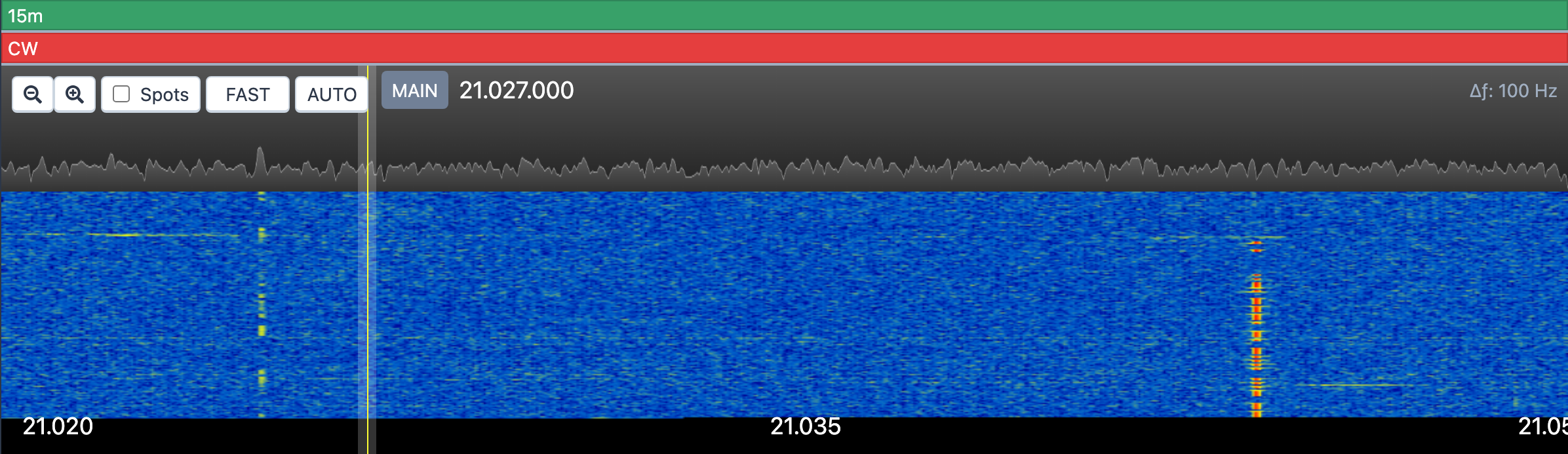
Reading the display
The strip above the spectrum marks the band segments; click a marker to zoom to that segment. The active VFO is drawn as a vertical line at its frequency with its passband shaded. ∆ƒ in the top right is the tuning step the display is using at the current zoom; clicks and drags snap to it.
Tuning with the mouse
- Click anywhere on the spectrum to tune the VFO there. As you hover, a gray ghost shows where it will land.
- Drag the VFO marker to retune it smoothly.
- Drag the background to pan up or down the band, within the span the radio allows.
- Roll the mouse wheel to zoom in and out around the pointer. The magnifier buttons in the top left zoom too.
On a touch screen, drag with one finger to pan and pinch with two to zoom.
Controls
The buttons in the top left:
- The two magnifier buttons zoom out and in.
- Spots draws DX cluster and RBN spots as flags on the waterfall. Click a flag to tune to it; right-click one for Hide for 1h, Hide for 24h or Hide for 48h. The same switch is under Tools → Console Settings → View → Show Spots on Waterfall. See DX spots.
- Speed cycles the waterfall rate: SLOW, MID, FAST.
- The reference level reads AUTO while the console sets it for you. Click it to set the level by hand, in dB, with the slider.
When the FT8 panel is active, the top right offers Locked to VFO / Unlocked. Locked keeps the display on the FT8 sub-band so the decodes line up with the waterfall; see FT8 in the console.
Drag the handle under the waterfall to change its height.
Related articles
-
Operating the console
Tuning and the VFO
Type a frequency, pick a band and mode from the presets, and tune with knobs, buttons or a slider.
-
Operating the console
Icom radios
The Icom radio panel — VFO A and B, split, XFC, filters and receive settings, FM repeaters, and the transmit controls.
-
Operating the console
DX spots
The DX cluster and RBN in the console — filter spots, see what you still need, and tune and turn the beam in one click.
-
FT8, FT4 & Q65
FT8 in the console
Decode FT8 at the station and work it from the console, with no software, audio cables or virtual sound cards.
Still stuck?
Tell us what you were trying to do and what happened, and we'll help.