FT8 in the console
Decode FT8 at the station and work it from the console, with no software, audio cables or virtual sound cards.
Updated 12 Nov 2026
Every RHR station decodes FT8, FT4 and Q65 itself. The decodes stream into the console, and your replies are sent from the station, so there is nothing to install and no audio to route. This article covers the FT8 panel; Making FT8 contacts covers working a QSO. If you would rather run your own copy of WSJT-X, see WSJT-X with LocalMate.
Opening the FT8 panel
The panel appears when you are connected to a station and the radio is in a digital mode. The quickest way there:
- Connect to the station.
- Click the frequency on the VFO to open Tune VFO.
- In the preset table, click FT8 on the band you want.
The radio tunes to the band's FT8 frequency and switches mode, and the FT8 panel opens below the radio controls and follows the active VFO.
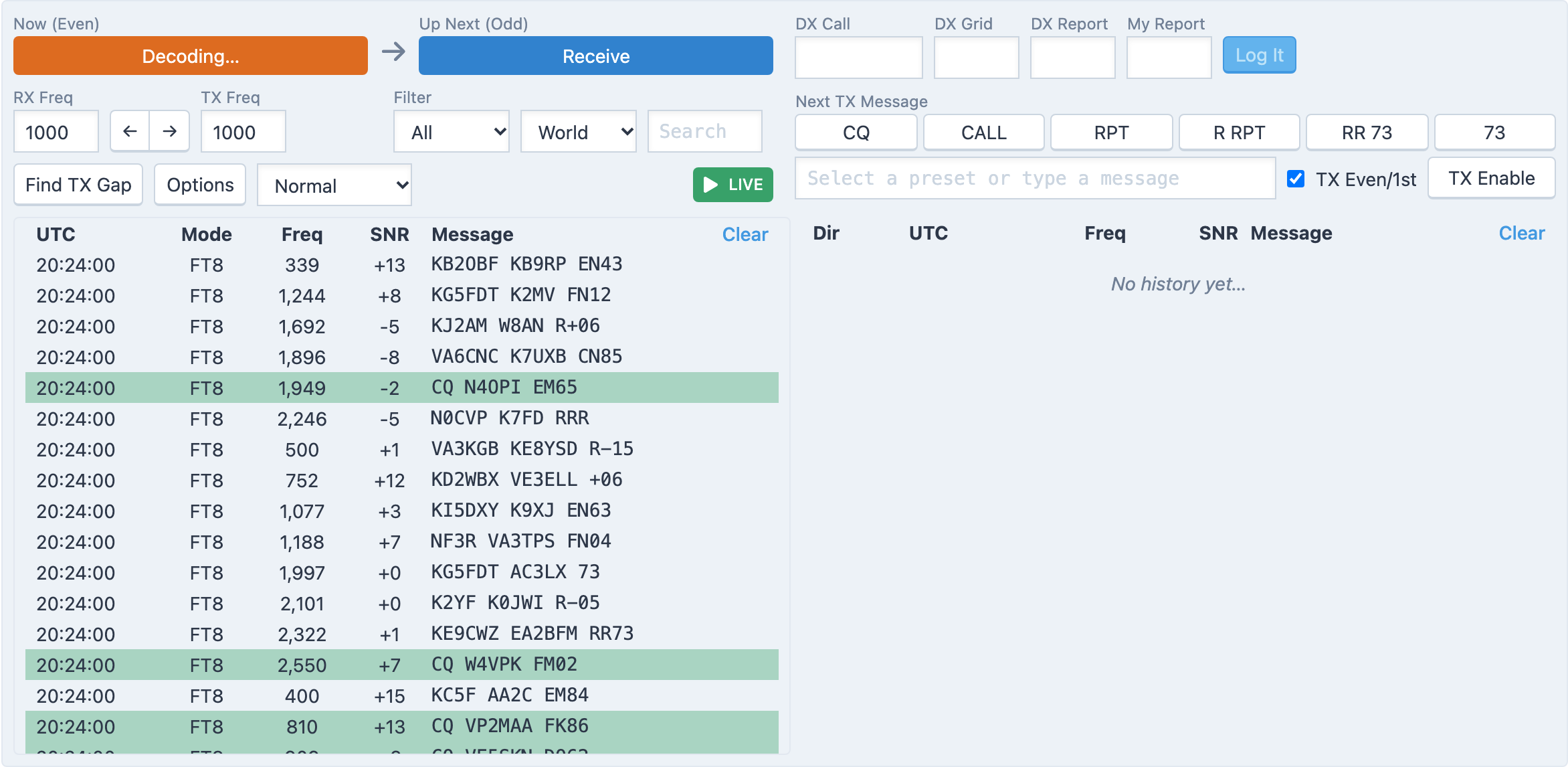
What you are looking at
Now and Up Next show the current 15-second period and the one after it, each marked Even or Odd. A blue Receiving… turns orange for Decoding… at the end of each period, and red when you transmit, showing the message being sent.
RX Freq and TX Freq are your audio offsets in Hz within the 3 kHz passband. The ← and → buttons copy one onto the other. Find TX Gap picks the widest empty spot between 300 and 3000 Hz in the latest decode period and makes it your TX Freq.
The badge on the right says LIVE while new decodes scroll in. When you move the mouse over the list or scroll down it, the list freezes so rows do not move under your cursor, the badge changes to PAUSED · N new, and clicking the badge jumps back to the latest decodes.
The decode list
Each row shows UTC, Mode, Freq, SNR and the Message. A red line separates one period from the next. CQ calls and messages addressed to you are highlighted; messages the console cannot act on are greyed out. Clear empties the list.
Narrow the list with the two selects and the search box above it:
- Filter: All, CQ only, Calling me only, Me only (anything that mentions your callsign) or DX only (only the station you are working). Fox callers only appears in Fox mode.
- Continent: World, or one or two continents such as EU only or NA/SA only, based on the sender's prefix.
- Search matches any text in the message, for example a callsign or grid.
When nothing matches, Show All Decodes resets the filter.
History
The table on the right is your own QSO history for this session: the messages you sent (→) and the ones sent to you (←), with their UTC, Freq and SNR. Clicking a history row works like clicking a decode. Clear empties it.
Related articles
-
FT8, FT4 & Q65
Making FT8 contacts
Reply to a decode, let the console sequence the QSO, and log it with one click.
-
FT8, FT4 & Q65
FT4 and Q65
The same panel also works FT4 and Q65, including the Q65 submodes used for EME.
-
LocalMate & integrations
WSJT-X with LocalMate
Run your own WSJT-X against an RHR station, or send the console's FT8 decodes and contacts to JTAlert, GridTracker and loggers.
-
Operating the console
The scope and waterfall
Read the spectrum, click to tune, zoom and pan, set the waterfall speed and show DX spots on it.
Still stuck?
Tell us what you were trying to do and what happened, and we'll help.