Audio setup
Run the Audio Setup Wizard, allow the microphone in your browser, choose your speakers and mic, and set the volume.
Updated 12 Nov 2026
On this page
The console plays the station's receiver through your speakers or headset and sends your microphone to the transmitter, all inside the browser. The first time you open the console it offers the Audio Setup Wizard; you can run it again at any time from the Audio menu.
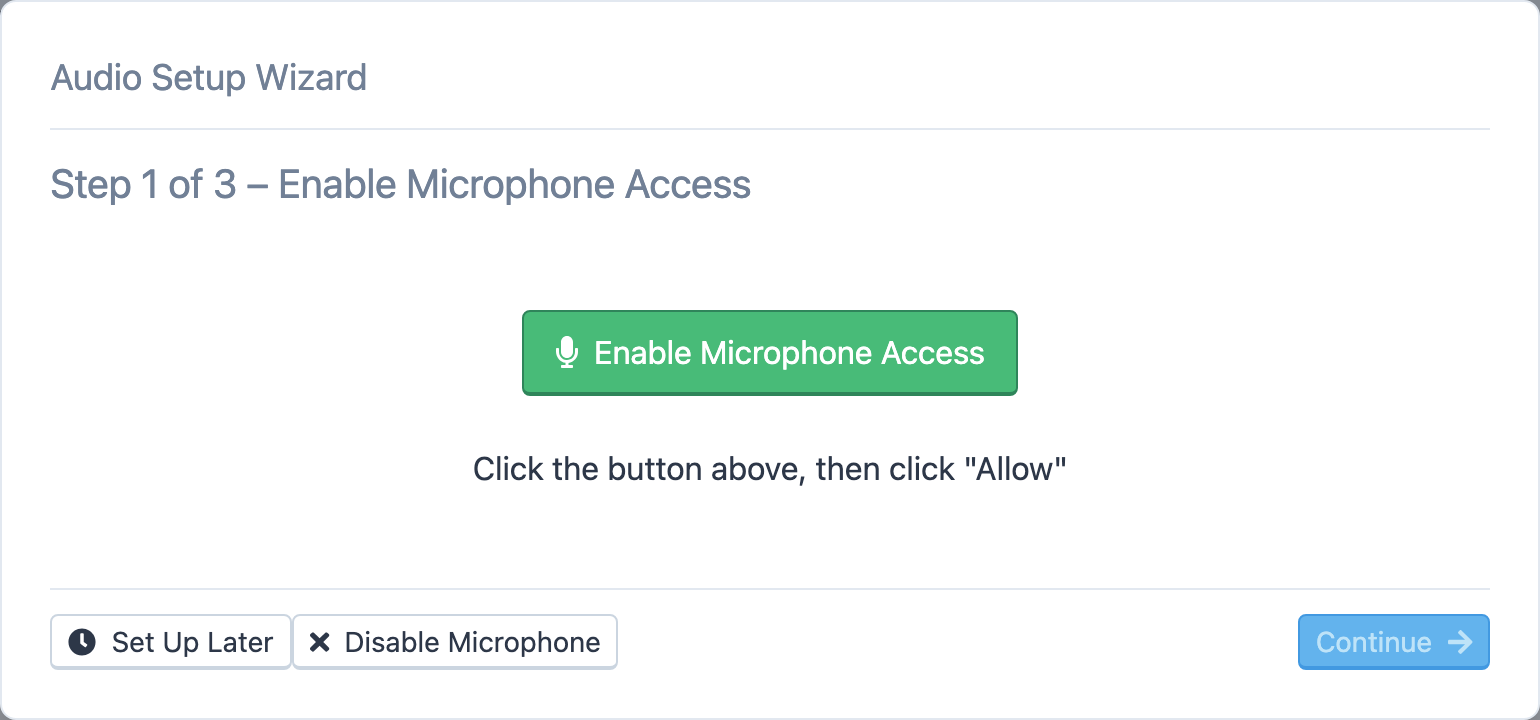
The Audio Setup Wizard
- Step 1 of 3 – Enable Microphone Access. Click Enable Microphone Access, then click Allow in your browser's prompt (in Firefox, also tick Remember this decision). When it works, the wizard says We found your microphone! If the browser has blocked the microphone, the wizard shows the steps for your browser — Chrome and Edge, Firefox, Safari on macOS and iOS, and the macOS system setting — to unblock it. The microphone is only available on a secure (HTTPS) page, which the console always is.
- Step 2 of 3 – Select Speakers. Pick the output device and click Play Test Sound. Some browsers don't let a page choose the speaker; the wizard says so, and you change the output device in your operating system instead.
- Step 3 of 3 – Select Microphone. Pick the microphone, watch the stereo level meters while you speak, and choose which channel to transmit: Transmit Left Channel, Transmit Right Channel or Transmit Both Channels. Tick Listen To Microphone (Testing) to hear yourself while you adjust. Click Reload if a device you just plugged in isn't listed.
- Click Done.
The buttons along the bottom let you leave early: Set Up Later closes the wizard and asks again next time; Disable Microphone turns the mic off so you can connect receive-only; Don't Ask Again stops the wizard from appearing on its own. Back and Continue move between steps.
The Audio menu
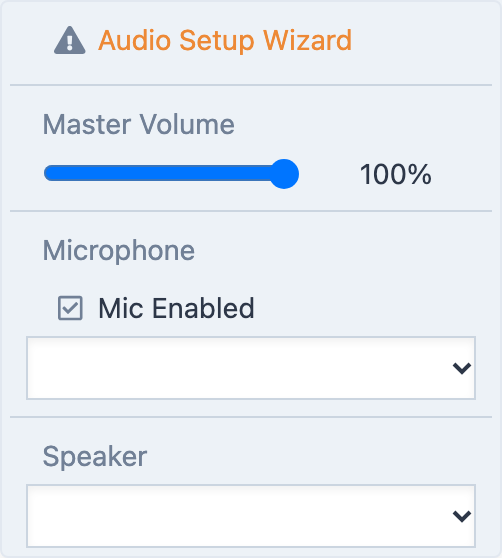
The Audio menu in the header holds the day-to-day controls:
- Master Volume — the receiver volume in your browser, as a percentage. At zero it shows Muted in orange, and the connect button turns orange too, so you don't sit on a silent station wondering why.
- Microphone — the Mic Enabled checkbox, the device list and a live level meter.
- Speaker — the output device list.
- Audio Setup Wizard — run it again. It shows in orange with a warning icon while no devices have been set up.
The radio's own receive settings, such as the filter and noise reduction, are in the radio panel; see Icom radios.
Connecting without a microphone
With Mic Enabled off, the connect button reads Connect (No Mic) and you get a receive-only connection at the station's rate. Turn the mic back on and reconnect to transmit.
When to run the wizard again
Run it whenever you change headsets or move to another computer, and when a microphone meter shows no movement. The console remembers the devices you chose in this browser.
Related articles
-
Getting started
System requirements
The browsers, network and hardware the console needs, and what LocalMate requires.
-
Operating the console
Transmitting
Push to talk from the keyboard, mouse or touch screen, use VOX, set power and the monitor, read the meters and understand transmit lockouts.
-
Troubleshooting
Microphone and audio problems
Fix a microphone the console cannot reach, no receive audio, or a transmit level that is too low or too hot.
Still stuck?
Tell us what you were trying to do and what happened, and we'll help.