Microphone and audio problems
Fix a microphone the console cannot reach, no receive audio, or a transmit level that is too low or too hot.
Updated 12 Nov 2026
On this page
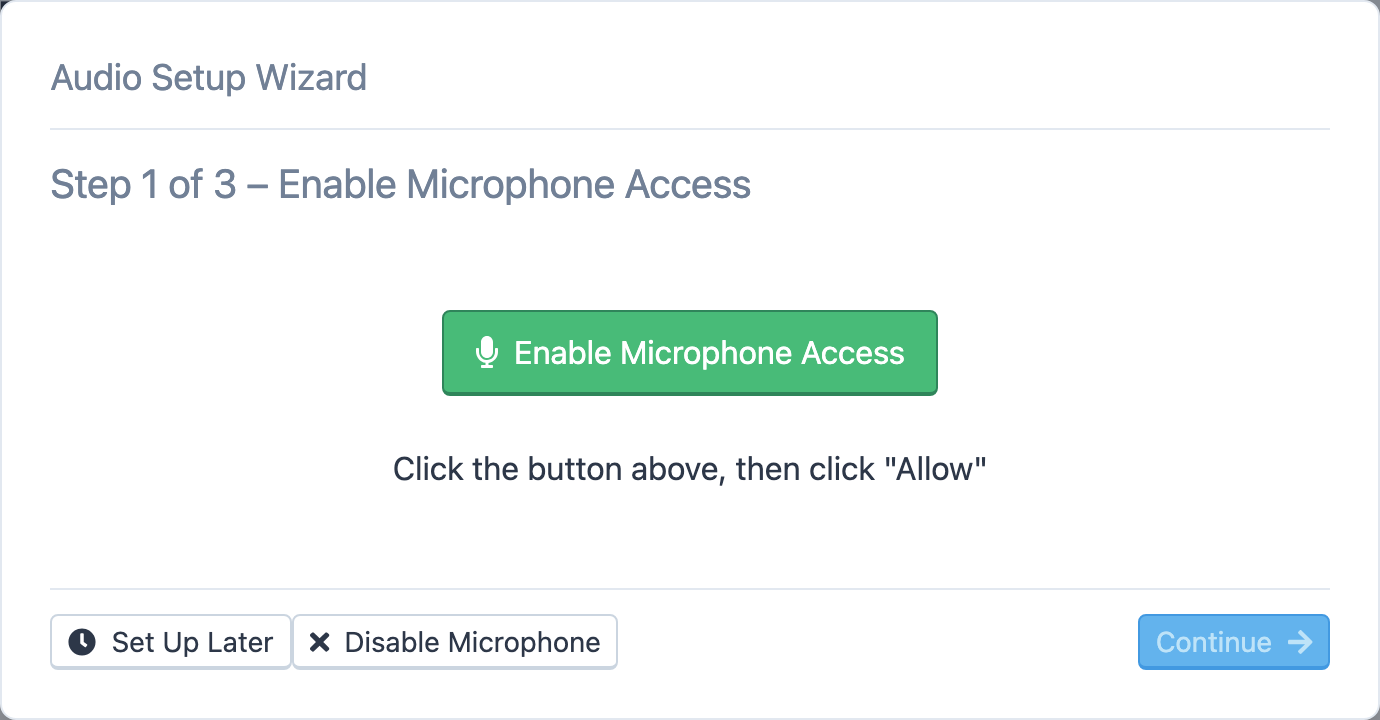
Audio on RHR is plain browser audio: the console plays the station through the speakers you choose and sends your microphone to it. Most problems are permissions or the wrong device selected. Start with Audio → Audio Setup Wizard, which walks through access, speakers and microphone in three steps; this article explains what to do when a step fails.
The console cannot access the microphone
Step 1 of the wizard, Enable Microphone Access, asks the browser for permission. If you denied it once, the browser remembers, and the wizard shows We couldn't access your microphone. with instructions for your browser:
- Chrome and Edge: click the settings icon at the left of the address bar, turn Microphone on, reload the page and click Enable Microphone Access again.
- Firefox: click the icon at the left of the address bar, remove the Use the Microphone – Blocked entry, click the button again, check Remember this decision and click Allow.
- Safari on a Mac: choose Safari → Settings for This Website and set Microphone to Allow, then reload.
- Safari on iPhone or iPad: tap aA in the address bar, tap Website Settings, set Microphone to Allow, then reload.
- macOS, any browser: if the browser itself has no microphone access, open System Settings → Privacy & Security → Microphone, turn the browser on, and quit and restart the browser.
Browsers allow the microphone only on secure pages. If the address does not start with https://, the console cannot get a microphone at all and says so.
The microphone is busy or missing
If permission is granted but there is still no level on the meter in Step 3, another program probably has the microphone: a video call, a recording app, or another console tab. Close it and reopen the wizard. If you plugged the microphone in after the browser started, reload the page.
In Step 3, pick the right device in the list; USB headsets often appear twice, once for the microphone and once for a line input. The stereo meters move when you speak. Choose Transmit Left Channel, Right or Both to match the channel your microphone actually uses. Listen To Microphone (Testing) plays you back through your speakers so you can hear what the station will hear.
No receive audio
- In the Audio menu, check Master Volume. At the far left it reads Muted.
- In Step 2 of the wizard, Select Speakers, pick the device you are listening on and click Play Test Sound. Some browsers cannot switch speakers; the wizard tells you to change the output device in your operating system instead.
- Check the browser tab is not muted, and that the operating system's output device and volume are what you expect.
- Make sure you are connected to a station. Audio only flows while connected, and the radio panel's Master Volume can be turned all the way down.
- Tools → Console Settings → Advanced shows the Audio System status: the sample rate, whether the microphone stream and device list were obtained, and which failed.
Transmit audio too low or distorted
Watch the ALC meter on the transmit panel while you speak. Set the microphone level in your operating system's sound settings so ALC moves without pinning, then adjust the console's compressor or processor setting for the radio you are on. Shouting into a microphone set too hot overdrives the radio and splatters; raising the level does not make you louder.
Operating without a microphone
If you are only listening, or your microphone will not cooperate, choose Disable Microphone in the wizard, or connect with Connect (No Mic) from the station's connect menu. CW and digital modes work without a microphone; only phone needs one.
Related articles
-
Operating the console
Audio setup
Run the Audio Setup Wizard, allow the microphone in your browser, choose your speakers and mic, and set the volume.
-
Operating the console
Transmitting
Push to talk from the keyboard, mouse or touch screen, use VOX, set power and the monitor, read the meters and understand transmit lockouts.
-
Troubleshooting
Connection problems
What to do when the console will not connect, keeps reconnecting, or the audio stutters.
Still stuck?
Tell us what you were trying to do and what happened, and we'll help.