Connection problems
What to do when the console will not connect, keeps reconnecting, or the audio stutters.
Updated 12 Nov 2026
On this page
Two different connections keep the console working: one to RHR's servers, which carries the station list, controls and chat, and one to the station itself, which carries the radio's audio. This article covers both. If you can connect but are refused, see Why can't I connect?.
"Reconnecting..."
A grey overlay with Reconnecting... means the console lost its connection to RHR's servers. It retries on its own; nothing you do in the meantime is sent. If it does not clear within a minute:
- Check that other websites load.
- Reload the page. If you were connected to a station, check the station header afterwards and reconnect if needed; see Connect to a station.
- If it happens often, turn off any VPN and try a wired connection.
Audio drops, stutters or lags
While connected, the station header shows the round-trip time to the station in milliseconds, green under 250 ms, yellow under 500 ms and red above. Hover over it to see Direct (P2P) or Relayed (TURN).
- Relayed (TURN) means your network blocks a direct connection, so the audio goes through an RHR relay server. It works, but with more delay. Home routers and mobile hotspots sometimes need it; a corporate or hotel network usually does.
- A high or jumping round-trip time usually means Wi-Fi or a busy connection. Move to Ethernet, or closer to the access point, and pause large downloads and video streams.
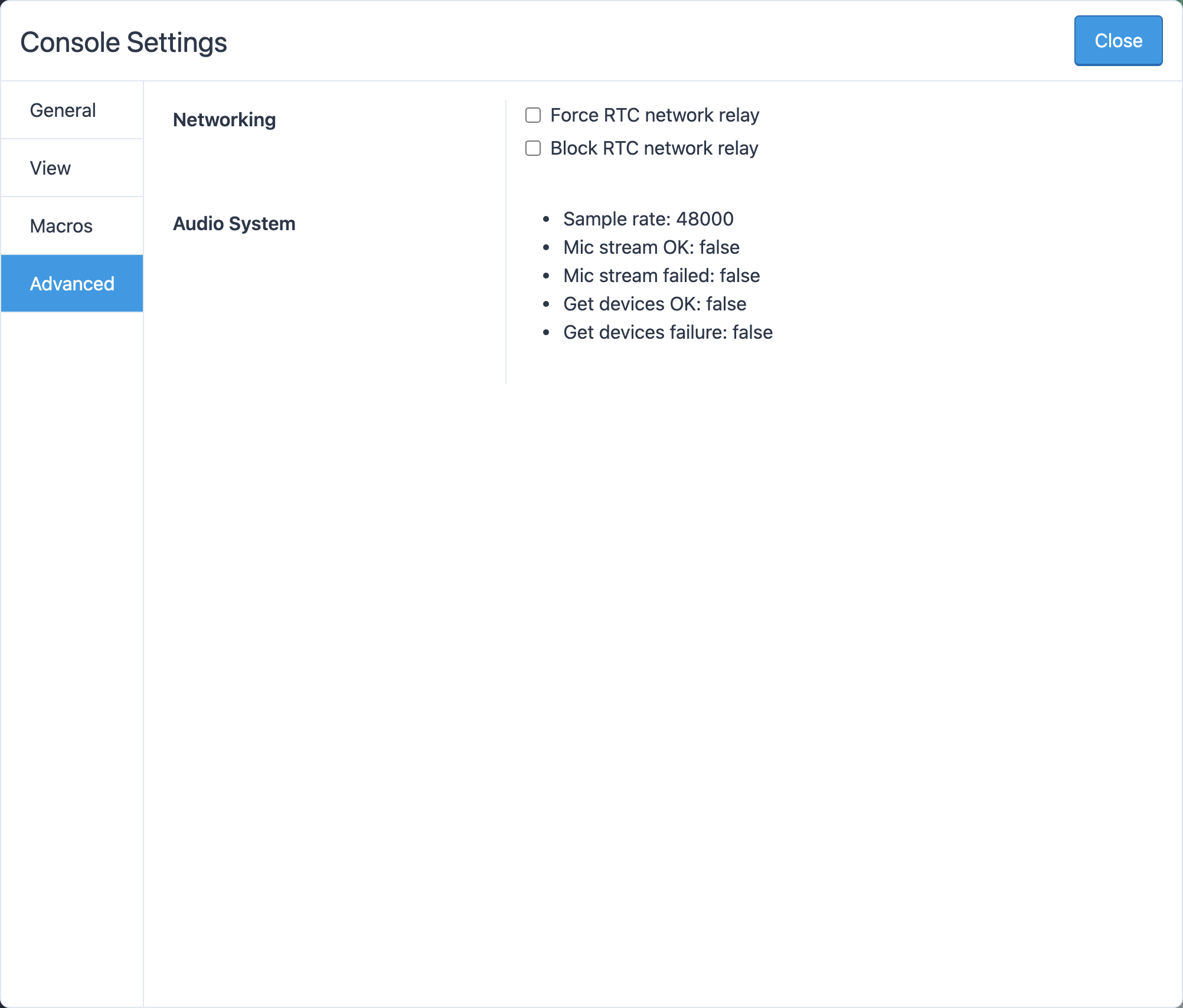
In Tools → Console Settings → Advanced, under Networking, two checkboxes change how the audio connection is made:
- Force RTC network relay always uses the relay. Try it if the direct connection sets up but the audio never arrives or breaks up badly.
- Block RTC network relay never uses the relay. Leave it off unless support asks you to turn it on.
Connect to the station again after changing either one.
Firewalls and VPNs
The console needs:
- outgoing HTTPS and WebSocket connections to
my.remotehamradio.com; - outgoing UDP for the audio, as any video-calling app does. If UDP is blocked, the relay takes over and adds delay.
VPNs, ad blockers and privacy extensions can block the audio connection or the microphone. If the console misbehaves, try it with the VPN off and in a private window, where extensions are usually disabled.
"This browser is not supported"
The console needs a current version of Chrome, Edge, Firefox or Safari (macOS and iOS). Older browsers, and some embedded browsers in other apps, lack the audio features it relies on. The dialog also appears if the page was not loaded over HTTPS, since browsers allow the microphone only on secure pages; check that the address starts with https://.
"This is not the tab you're looking for!"
You are connected to a station in another tab or browser window. Operate it there, or disconnect in that tab first. A connection belongs to the tab that started it.
"… is temporarily unavailable."
The station is offline or taken out of service. There is nothing to fix on your end; pick another station. Sometimes a note under the message explains why.
When to report a problem
If one station connects but sounds wrong, will not key or shows the wrong frequency, while other stations work, the fault is at the station. Use Help → Report a Station Problem; see Report a station problem.
Related articles
-
Getting started
System requirements
The browsers, network and hardware the console needs, and what LocalMate requires.
-
Operating the console
Connect to a station
Read a station's status, choose a rate, connect with or without a microphone, and disconnect when you're done.
-
Troubleshooting
Microphone and audio problems
Fix a microphone the console cannot reach, no receive audio, or a transmit level that is too low or too hot.
-
Contact us
Report a station problem
Tell us about a station that is misbehaving, from the console, with the details we need to find and fix the fault.
Still stuck?
Tell us what you were trying to do and what happened, and we'll help.