Antennas and rotors
Use the map panel to choose antennas, turn the beam with Go Anywhere or a preset, and track the moon on EME stations.
Updated 12 Nov 2026
On this page
The Map panel is where you point the station. It shows the world as the station sees it, with the controls for its antennas and rotors underneath.
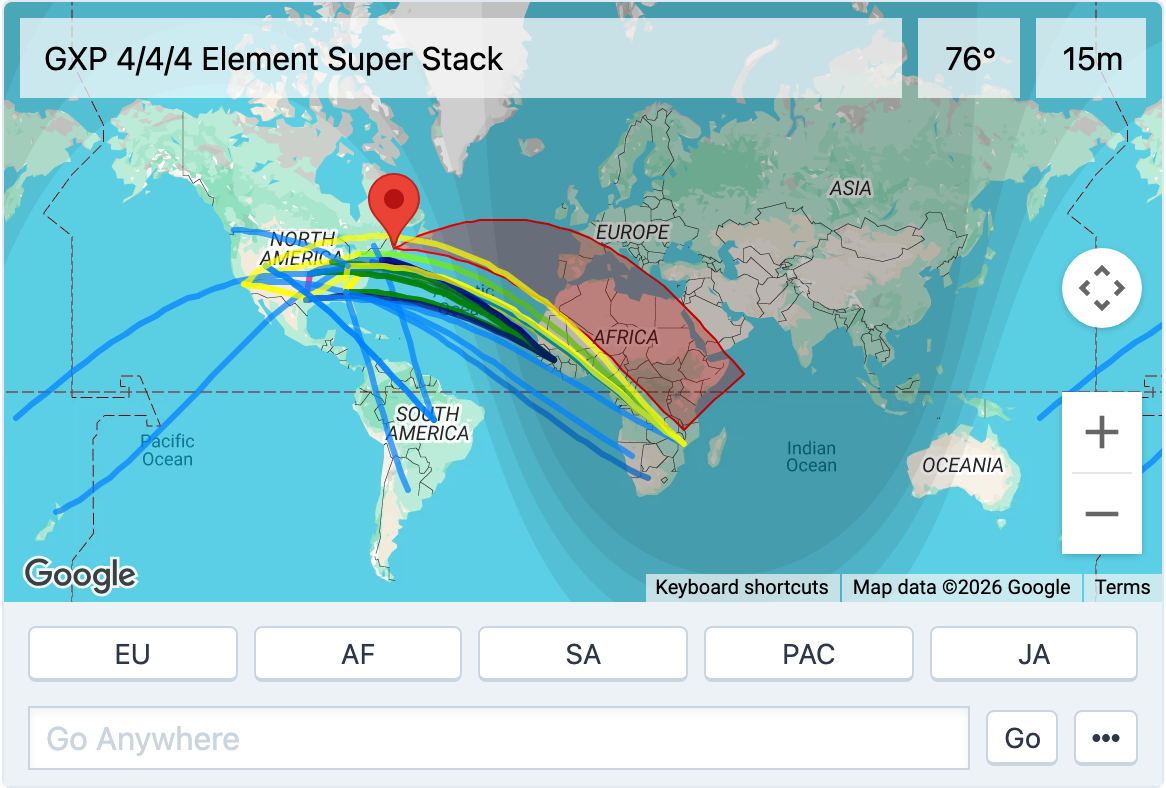
The map
The map is centered on the station and draws:
- the grayline — the day/night terminator, for working the gray-line enhancement;
- the station's active antennas as beam patterns in the direction they point;
- DX spots as markers, when Show Spots on Map is on (in the DX Spots tab's Options menu or under Tools → Console Settings → View);
- the target you last asked Go Anywhere to find;
- the position, footprint and ground track of the satellite you are tracking, on satellite stations.
Over the top of the map are the names of the antennas active on your current band, each rotor's heading and the band. If you don't need the map, open the … menu beside Go and tick Hide Map; the controls stay.
Choosing antennas
Stations with more than one antenna on a band show a row of Antenna Switch buttons; the active antenna is green. Where a switch only selects receive antennas it is labelled as such. Stations whose antennas are fixed for each band have no buttons — the station picks the antenna when you change band.
Turning the rotor
- Rotor Presets — buttons such as EU or JA, set up by the station owner for the usual directions. The preset nearest the current heading is green.
- Go Anywhere — type a bearing (
0to359) to turn straight to it, or type a callsign, a grid square or a place name and pressEnteror Go. The console looks it up, drops a marker on the map and turns the rotor to the short-path heading. If the lookup fails the box turns red. - Go (Long Path) — in the … menu: look up the same target and turn to the long-path heading, 180° away.
- Stop Rotor — also in the … menu, on rotors that support stopping mid-turn.
The heading labels over the map update as the rotor turns. On stations where more than one rotor serves the band, all of them turn together.
The quickest way to point at a spot is Tune and Turn in the DX Spots tab, which tunes the radio and turns the beam in one click; see DX spots.
Tracking the moon
On stations equipped for EME, a Track Moon checkbox appears beside Go Anywhere when you are on a band the moon-tracking antennas cover. It shows the moon's current azimuth and elevation, is grayed while the moon is below the horizon, and when ticked keeps the antennas following the moon for you. See Satellites and EME.
Related articles
-
Operating the console
DX spots
The DX cluster and RBN in the console — filter spots, see what you still need, and tune and turn the beam in one click.
-
Operating the console
Satellites and EME
Work the birds with automatic Doppler correction, and track the moon on EME stations.
-
Operating the console
Amplifiers
Set the amplifier's level, read its power, SWR and temperature, and clear a fault.
Still stuck?
Tell us what you were trying to do and what happened, and we'll help.