Voice macros
Record your CQ and exchanges once and play them with F1–F5, with auto-repeat for calling CQ.
Updated 12 Nov 2026
On phone — SSB, AM or FM — the Phone Macros group appears above the transmit controls. Each macro is a recording from your microphone that the console plays into the transmitter while keying it, so you can call CQ for an hour without saying a word.
Recording
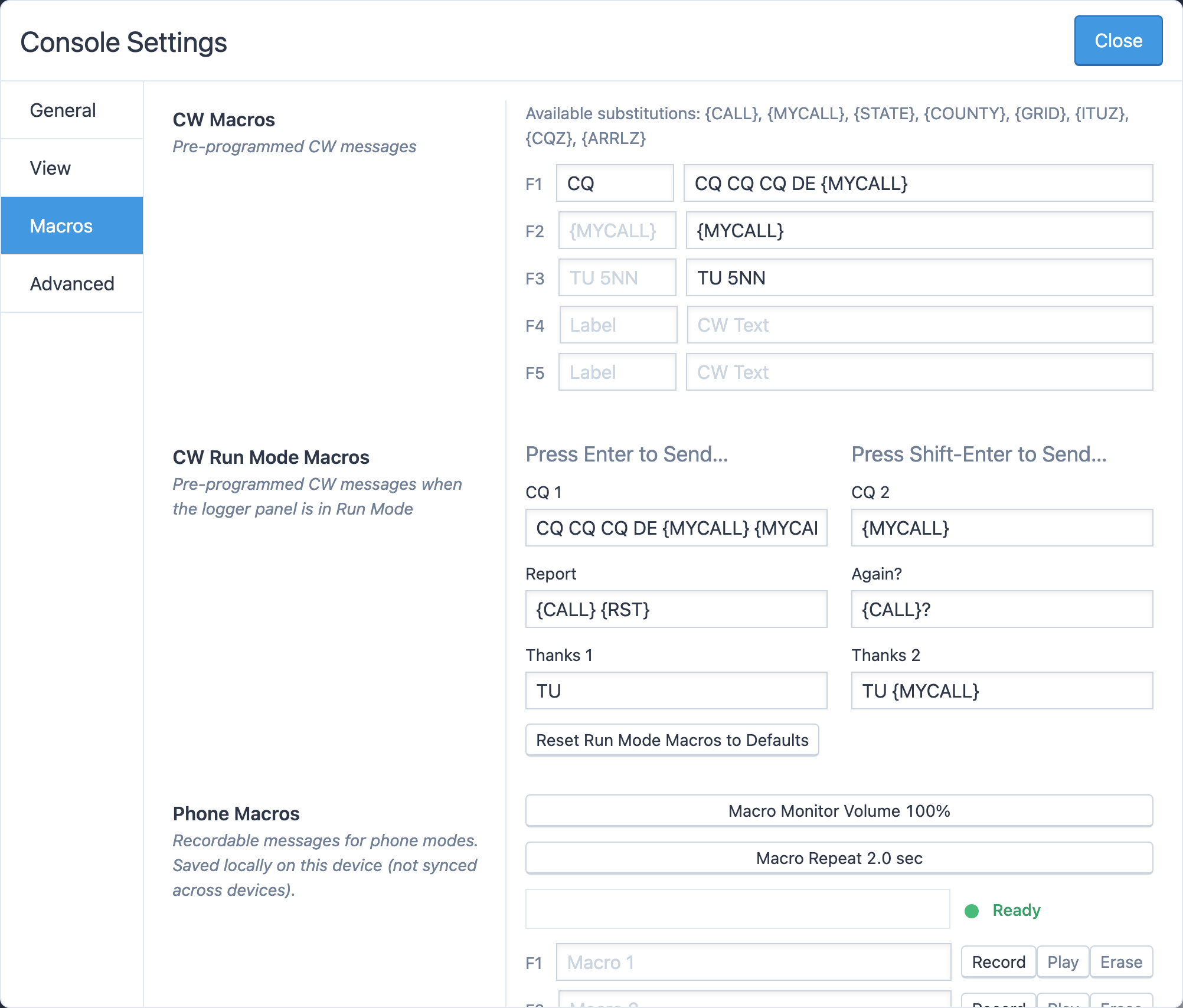
- Open Tools → Console Settings → Macros and scroll to Phone Macros.
- Watch the microphone meter and the status beside it: Ready means your mic is open. Mic unavailable means the microphone is disabled or blocked; fix it in Audio setup first.
- On the row for F1 (or any key), type a label if you like, then click Record. The status reads Starting mic… and then Recording F1.
- Speak your message and click Stop.
- Click Play to check it, or Erase to start over.
Recordings are saved in this browser on this device only. They don't follow you to another computer, and clearing the browser's site data removes them.
Two sliders apply to every macro:
- Macro Monitor Volume — how loudly you hear the macro in your own speakers while it plays. At zero the panel shows a warning so you know why it's silent.
- Macro Repeat — the pause between repeats, 1.0 to 10.0 seconds.
Playing
In the Phone Macros group, each recorded macro is a button labelled with its key and your label (or Macro 1, Macro 2, …). Click it, or press F1 to F5, and the console keys the transmitter, plays the recording and unkeys. The playing macro's button turns green.
Hold Shift while pressing the function key to repeat the macro every Repeat interval — the usual way to run a CQ. Press Esc to stop, either mid-message or between repeats.
The same group carries its own Macro Mon and Repeat controls so you can adjust them without opening settings.
Related articles
-
Operating the console
Transmitting
Push to talk from the keyboard, mouse or touch screen, use VOX, set power and the monitor, read the meters and understand transmit lockouts.
-
Operating the console
Audio setup
Run the Audio Setup Wizard, allow the microphone in your browser, choose your speakers and mic, and set the volume.
-
Operating the console
CW
Send CW from the keyboard as you type, with F1–F5 macros, speed and sidetone controls, and a one-click RBN check.
Still stuck?
Tell us what you were trying to do and what happened, and we'll help.