Logging from the console
The Log Entry panel, its keyboard flow, and the Log tab for quick edits.
Updated 12 Nov 2026
On this page
The Log Entry panel sits with the station's controls and follows the radio: the frequency and mode of each contact come from the transmit VFO, and the station is recorded with it. The Log tab in the toolbox shows what you have logged.
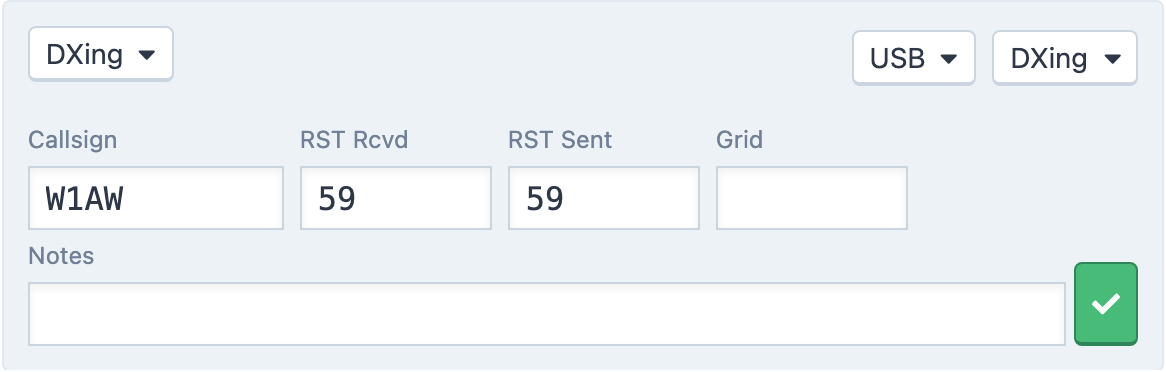
Choosing a logbook, mode and fieldset
The three buttons at the top of the panel are menus:
- Select a Logbook lists your logbooks for the station's country, and one of them is selected for you when you switch to a station in another country. New Logbook… and Manage Logbooks… open the logbook pages in a new tab.
- The mode button shows the mode that will be logged. It follows the radio, so you rarely touch it. Phone modes, data modes and CW are listed first, with everything else under Other Modes. No Mode means the radio's mode has no match and you should pick one.
- The fieldset button chooses the fields you fill in: DXing, Contesting, Run CW, and the contest fieldsets described in Contest logging. Satellites is chosen for you when you track a satellite.
Entering a contact
DXing has Callsign, RST Rcvd, RST Sent, Grid and Notes. Contesting has Callsign, Exch Rcvd and Exch Sent. Satellites has Callsign, Grid and Satellite.
- Type the callsign.
Tabmoves to the next field (Shift-Tabgoes back); in DXing,Spacejumps straight from Callsign to Notes.- Press
Enter, or click the check button, to save. The button turns green when the entry is complete enough to save.
The form clears for the next contact. If something is wrong the panel shows Error: with the reason, for example when no logbook is selected.
After you disconnect
The panel keeps the last station and frequency so you can log a contact you finished just before disconnecting. Two yellow labels show the station name and frequency that will be recorded when they differ from what you are looking at now; after that one contact the radio data is cleared.
The Log tab
The Log tab in the toolbox lists your latest 50 contacts across all logbooks, with UTC, Callsign, Band, MHz, Mode, Station, Sent, Received and Logbook. Click a callsign, or the sent or received column, for a menu:
- Quick Edit turns the row into fields for the callsign, reports and exchanges.
Enteror Save keeps the change;Escor Cancel drops it. - View Contact opens the contact's page in a new tab.
View all contacts at the bottom opens the full logbook.
Related articles
-
Logbook
The RHR logbook
How your contacts are stored, which logbook they go to, and where they sync.
-
Contesting
Contest logging
The contest fieldsets in the Log Entry panel, with dupe checks, live score and a Cabrillo download.
-
Contesting
Run mode and ESM
Run a CW pileup from the keyboard: Enter sends the right message for where you are in the QSO.
-
Operating the console
Keyboard shortcuts
Every keyboard shortcut in the console, from connecting and PTT to macros, logging and tuning.
Still stuck?
Tell us what you were trying to do and what happened, and we'll help.