CTR2-MIDI controller
Set up the CTR2-MIDI's knob, six buttons and key jack to run the station and send CW.
Updated 12 Nov 2026
On this page
The CTR2-MIDI, made by Lynovation (KU7Q), is a small desk controller with a rotary encoder knob, six programmable push buttons and a 3.5 mm jack for a paddle, straight key or footswitch. It connects over USB as a standard MIDI device, so it works straight from the browser with nothing to install.
Browsers
The controller uses the browser's MIDI support: Chrome, Edge or Firefox. Safari does not support MIDI, and the tab says MIDI devices are not supported in this browser.
Connect it
- Plug the CTR2-MIDI in.
- Open Tools → Integrations and choose CTR2-MIDI.
- Check Enable CTR2-MIDI. The browser asks for permission to use MIDI devices the first time; allow it.
- Under MIDI Device, choose CTR2-MIDI, marked (recommended). Click Refresh if the list is empty.
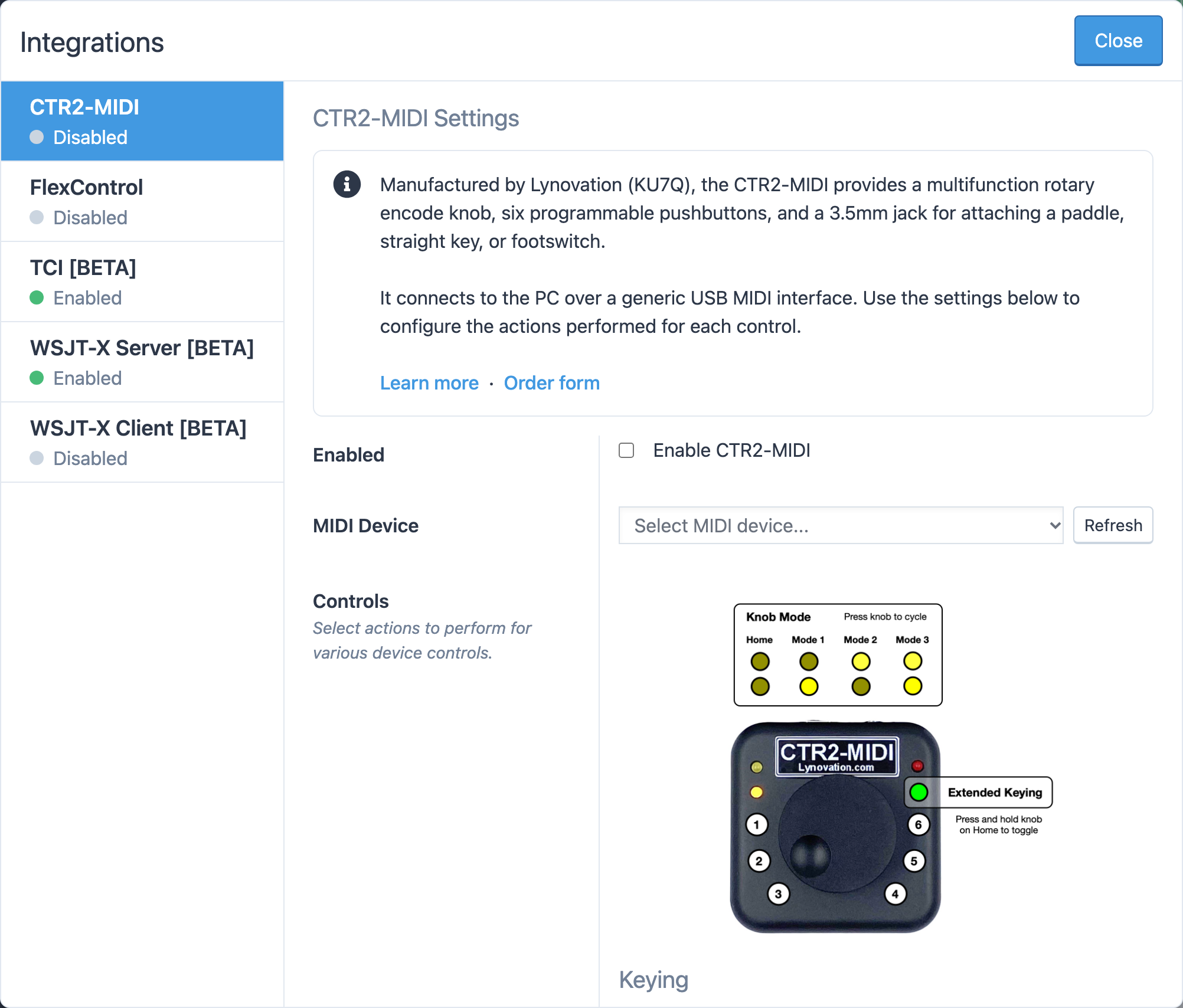
If the controller is unplugged later, the tab shows Device not found with a Try again button.
The knob
The knob has four modes: Home, and Mode 1 to Mode 3. Press the knob to go to the next mode; press and hold it for two seconds to jump back to Home. In Home mode the knob is a VFO; in the other modes it adjusts a level from 0 to 100%. Holding the knob down while turning gives each mode a second action.
| Knob | Default action |
|---|---|
| Knob (Home) | VFO, 10 Hz per step |
| Knob (Home, Pressed) | Slice Volume |
| Knob (Mode 1) | NR Level |
| Knob (Mode 1, Pressed) | NB Level |
| Knob (Mode 2) | Vox Level |
| Knob (Mode 3) | CW WPM |
The buttons
Each button has a short-press action and a long-press action.
| Button | Short press | Long press |
|---|---|---|
| 1 | CW Mode | Toggle NR |
| 2 | SSB Mode | Toggle NB |
| 3 | FT8 Mode | FT4 Mode |
| 4 | Toggle PTT | Toggle Vox |
| 5 | Band Down | |
| 6 | Band Up | Disconnect from Station |
Pick different actions under Buttons. The choices are the same as for the FlexControl: PTT and toggles, mode buttons, band up and down, and disconnect. Reset to Defaults restores the tables on this page.
The key jack
The 3.5 mm jack has two modes, Normal and Extended. To switch, put the knob in Home mode and hold it for two seconds; the green LED lights in Extended mode. Each mode's left and right inputs have their own action:
| Input | Default action |
|---|---|
| Left Paddle | Keyer Dit |
| Right Paddle | Keyer Dah |
| Left Paddle (Extended) | Straight Key |
| Right Paddle (Extended) | PTT |
With the defaults, a paddle in Normal mode drives the console's built-in iambic keyer, and in Extended mode the left input is a straight key and the right one is a footswitch for PTT. The keyer's speed, mode, weight and sidetone are set in the same tab; see HaliKey and MIDI keys for what each setting does.
Related articles
-
LocalMate & integrations
HaliKey and MIDI keys
Send CW with your own paddle or straight key over USB MIDI, with the console's built-in iambic keyer.
-
LocalMate & integrations
FlexControl knob
Tune and run the station with FlexRadio's USB knob, paired straight to your browser.
-
Operating the console
CW
Send CW from the keyboard as you type, with F1–F5 macros, speed and sidetone controls, and a one-click RBN check.
Still stuck?
Tell us what you were trying to do and what happened, and we'll help.