LocalMate
The small helper app that connects ham radio software on your computer to the console.
Updated 12 Nov 2026
On this page
LocalMate is a free helper app from Remote Ham Radio that runs in the background on your computer. It gives the software you already use a way to reach the radio you are operating in the console: TCI clients such as WSJT-X and JTDX, your own copy of WSJT-X, loggers and spotting tools such as JTAlert and GridTracker, and N1MM+.
You do not need LocalMate to operate. The console works on its own, including FT8, FT4 and Q65, which are decoded at the station. You also do not need it for a FlexControl knob, a CTR2-MIDI controller or a HaliKey, which connect straight to the browser. Install LocalMate only when you want a program on your computer to talk to the radio.
Download and install
- Sign in and open Download. You can also open it from the console's Tools menu.
- Under RHR LocalMate, choose Download for macOS (Universal) or Download for Windows (x64).
- Unzip the download.
- macOS (12 or newer): drag RHR LocalMate to your Applications folder and open it.
- Windows (10 or newer, 64-bit): move
localmate.exesomewhere permanent, such as a folder in your Documents, and run it.
LocalMate has no window of its own when it starts. On macOS it appears as an icon in the menu bar, with no Dock icon; on Windows it appears in the system tray.
The tray menu
Click the LocalMate icon to see:
- A status line. It reads LocalMate Server Running until you connect to a station, then the station's name and grid, and how many clients are connected.
- Settings... opens the settings window.
- Quit stops LocalMate. The console's integrations stop working until you start it again.
The icon changes while a console session is active.
The settings window
The window has two settings. Everything else is set in the console.
| Setting | Default | What it does |
|---|---|---|
| Run on Startup | off | Starts LocalMate when you sign in to your computer. |
| LocalMate Port | 40001 | The port the console and TCI clients connect to. Change it only if another program already uses 40001, then enter the same port in the console. Click Save. |
Closing the window hides it; LocalMate keeps running.
Connect from the console
- In the console, open Tools → Integrations.
- At the top of any tab, under LocalMate, check that LocalMate Port matches the port in LocalMate's settings window (normally 40001).
- Click Connect. The status changes to Connected with LocalMate's version number.
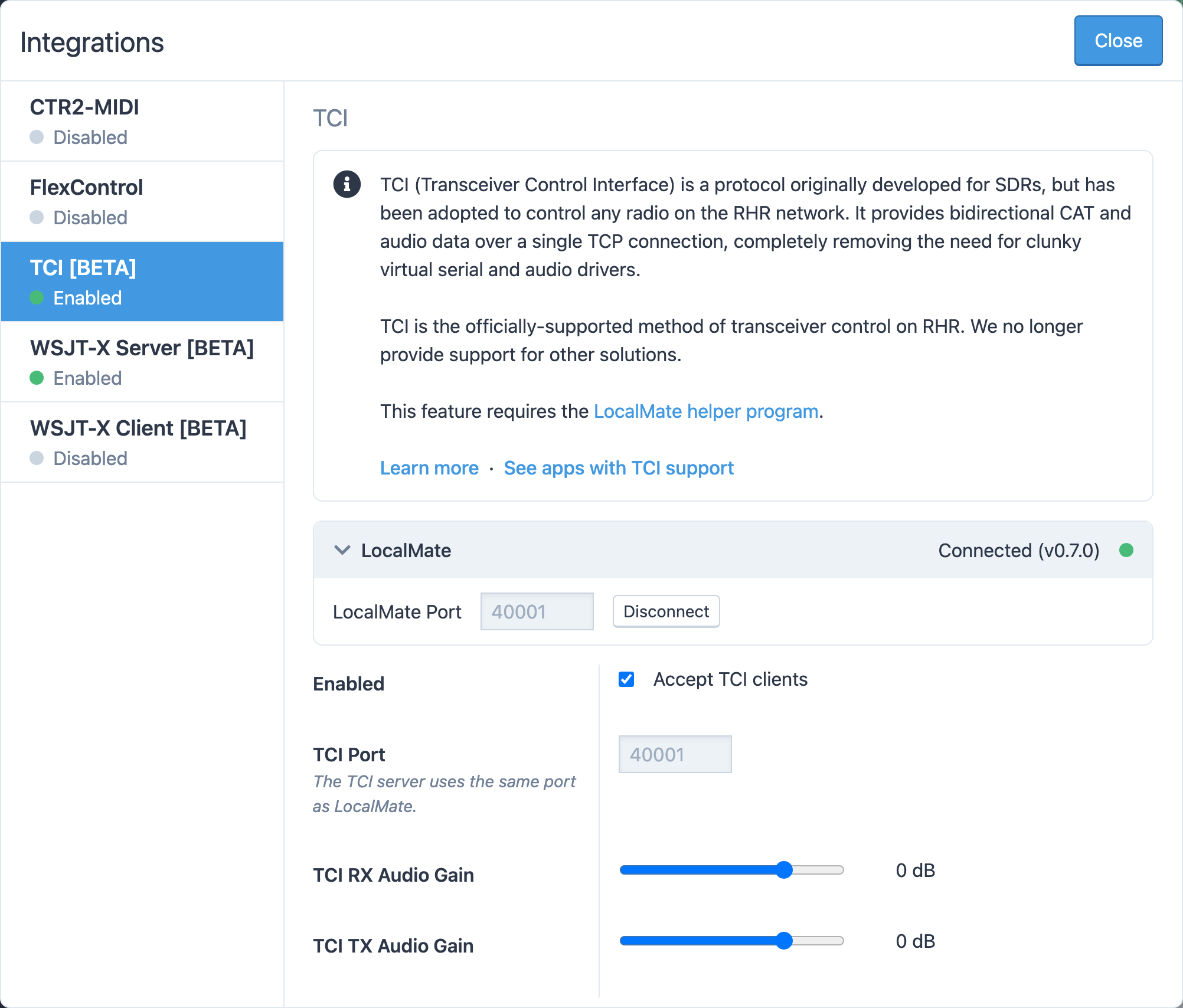
The console connects on its own when it loads, so after the first time you will usually find it already connected. The status line shows one of:
- Connected (v…): ready. Once a client such as WSJT-X connects, a count appears, for example 1 TCI client connected.
- Connecting…
- Disconnected
- Error: Connection failed — is LocalMate running?: start LocalMate, or check the port.
Each tab's settings appear only while LocalMate is connected; otherwise the tab says Start LocalMate to configure … settings.
One console at a time
LocalMate serves one console session. If you open the console in a second tab or browser, that tab cannot use LocalMate until the first one disconnects or closes. Software on your computer can only reach the radio while you are connected to a station in the console; between connections, clients are refused.
Updates
LocalMate does not update itself. When a newer version is available, the Integrations page shows an orange banner, A LocalMate update is available, with a Download now link. Quit LocalMate, replace it with the new download and start it again. Your settings are kept.
LocalMate stores its settings in ~/Library/Application Support/LocalMate/ on macOS and %APPDATA%\LocalMate\ on Windows.
Related articles
-
LocalMate & integrations
TCI radio control
Control the radio you are operating from WSJT-X, JTDX and other TCI software through LocalMate.
-
LocalMate & integrations
WSJT-X with LocalMate
Run your own WSJT-X against an RHR station, or send the console's FT8 decodes and contacts to JTAlert, GridTracker and loggers.
-
LocalMate & integrations
N1MM+ and other loggers
Let N1MM+ follow and control the radio you are operating, as if a Kenwood transceiver were attached.
-
Troubleshooting
LocalMate problems
Fixes for LocalMate not connecting, ports in use, software refused, and contacts that did not import.
Still stuck?
Tell us what you were trying to do and what happened, and we'll help.